LevitationCameraPro
Napsal: 15. 04. 2014 20:26
LevitationCameraPro v1.1
(20,- Kc)
Pozadavky: Android 2.2 a vyssi
Popis: LevitationCam makes levitation photography possible for anyone with an android phone.
No SLR camera, No Tripods, No triggers, No photoshop.
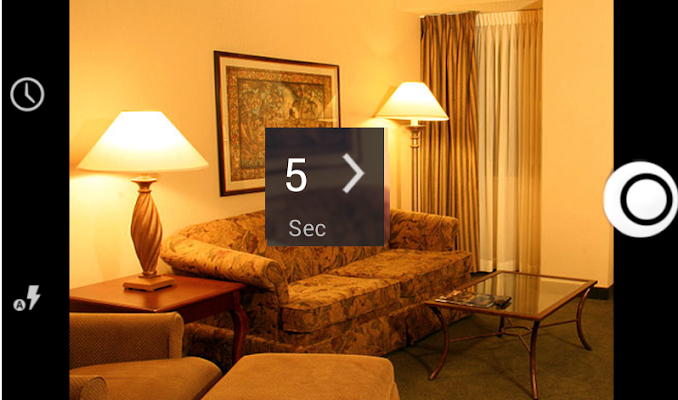
Screen:
Video:
What's in this version:
Fixed screen timeout issue.
Updated erase mode
Vice info:
Stahuj zde:
* ALL THE IMAGES USED IN THIS VIDEO AND IN THIS PAGE ARE *
* CREATED USING LEVITATIONCAM. NO OTHER SOFTWARE IS USED. *
*****************************************************************
********************************IMPORTANT********************************************
PLEASE ALWAYS USE LEVITATIONCAM WITH A MOBILE STAND...
********************************************************************************************
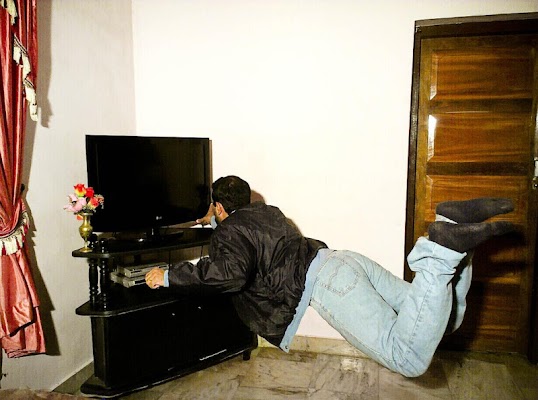
LevitationCam makes levitation photography possible for anyone with an android phone.
No SLR camera, No Tripods, No triggers, No photoshop.
It takes just three simple steps to create your levitation images.
1) Select timer interval between 5 sec to 90 sec. Place the camera on a stand and press capture button.
After 5 sec interval the first shot is taken which is the background image( without subject) .
2) Now place your subject according to your wish on the chair, carton or anything which you have chosen for your subject's support. After the selected timer interval a shot is automatically taken.
3) Now LevitationCam takes you to the edit mode. You can see two images as thumbnails, at bottom of the screen. First is the background image. Second is the image with the subject. Select image 1 from thumbnail. Select brush and erase the object that was used to support your model. If you accidentally erased more , then select image 2 and do a retouch. Adjust brush size and opacity based on your need.
(20,- Kc)
Pozadavky: Android 2.2 a vyssi
Popis: LevitationCam makes levitation photography possible for anyone with an android phone.
No SLR camera, No Tripods, No triggers, No photoshop.
Screen:
Video:
What's in this version:
Fixed screen timeout issue.
Updated erase mode
Vice info:
Kód: Vybrat vše
https://play.google.com/store/apps/details?id=com.fourcubes.levitationcameraKód: Vybrat vše
http://ul.to/vew6v5pr
https://www.tusfiles.net/y65yf4lz2f4m
http://unlimitzone.com/9evhcu1v576p/Levcam.zip.html
http://www2.zippyshare.com/v/87471866/file.html
http://hugefiles.net/13hxogjfhubl
http://uloz.to/x9X7Sitg/levitationcamerapro-v1-1-apk
http://ulozto.sk/xZ3YZTt7/levitationcamerapro-v1-1-apk
* CREATED USING LEVITATIONCAM. NO OTHER SOFTWARE IS USED. *
*****************************************************************
********************************IMPORTANT********************************************
PLEASE ALWAYS USE LEVITATIONCAM WITH A MOBILE STAND...
********************************************************************************************
LevitationCam makes levitation photography possible for anyone with an android phone.
No SLR camera, No Tripods, No triggers, No photoshop.
It takes just three simple steps to create your levitation images.
1) Select timer interval between 5 sec to 90 sec. Place the camera on a stand and press capture button.
After 5 sec interval the first shot is taken which is the background image( without subject) .
2) Now place your subject according to your wish on the chair, carton or anything which you have chosen for your subject's support. After the selected timer interval a shot is automatically taken.
3) Now LevitationCam takes you to the edit mode. You can see two images as thumbnails, at bottom of the screen. First is the background image. Second is the image with the subject. Select image 1 from thumbnail. Select brush and erase the object that was used to support your model. If you accidentally erased more , then select image 2 and do a retouch. Adjust brush size and opacity based on your need.